ML-00: Python Environment Setup for Machine Learning
Learning Objectives
After reading this post, you will be able to:
- Understand the pros/cons of different Python environment methods
- Know why Docker is recommended for this series
- Set up the ML environment using Docker (recommended) or alternatives
- Run the first test to verify your environment
Theory
Before diving into machine learning, you need a properly configured Python environment. Let’s explore the options and choose the best approach for this series.
Python Environment Methods Comparison
There are several ways to manage Python environments. Here’s a quick comparison:
| Method | Description | Best For |
|---|---|---|
| System Python | Python installed directly on OS | Quick scripts, beginners |
| venv | Built-in virtual environment | Simple projects, lightweight |
| Conda | Package + environment manager | Data science, complex dependencies |
| Docker | Containerized environment | Reproducibility, team collaboration |
Method Details
Let’s examine each method in more detail, along with its trade-offs.
System Python (Not Recommended)
| ✅ Pros | ❌ Cons |
|---|---|
| Zero setup | Pollutes system Python |
| Works immediately | Version conflicts between projects |
| Hard to reproduce on other machines |
venv (Python Built-in)
| ✅ Pros | ❌ Cons |
|---|---|
| Built into Python | Only isolates Python packages |
| Lightweight | Doesn’t handle system libraries |
| Easy to understand | Python version tied to system |
Conda (Anaconda/Miniconda)
| ✅ Pros | ❌ Cons |
|---|---|
| Manages Python versions | Large installation size |
| Handles non-Python deps (CUDA, MKL) | Can be slow to resolve dependencies |
| Great for data science | Environment files may not be portable |
Docker (Recommended for This Series)
| ✅ Pros | ❌ Cons |
|---|---|
| 100% reproducible | Learning curve for beginners |
| Isolates everything (OS, libs, Python) | Slight overhead |
| Same environment everywhere | Requires Docker installation |
| Easy to share and deploy |
Why Docker for This Series?
Among all options, Docker stands out for one critical reason: reproducibility.
💡 The Goal: When you run the code from this blog series, you get exactly the same results as everyone else — no “it works on my machine” surprises!
Docker Installation (Windows)
Step 1: Install Docker Desktop
- Download Docker Desktop from: docker.com/products/docker-desktop
- Run the installer and follow the prompts
- During installation, ensure “Use WSL 2 based engine” is checked
- Restart your computer if prompted
Step 2: Verify Installation
Open PowerShell and run:
If you see “Hello from Docker!”, you’re ready to go!
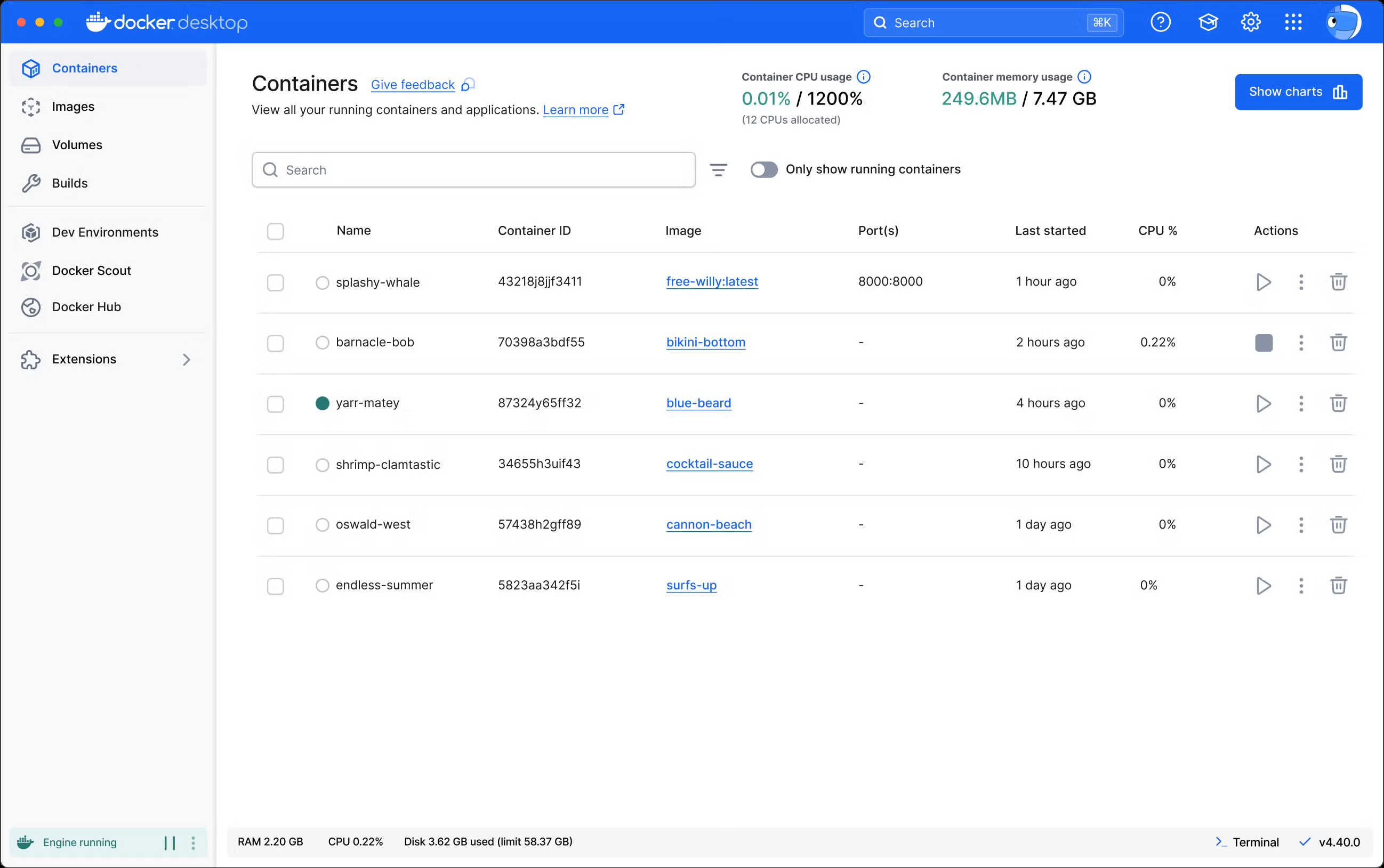
💡 Tip: If WSL2 is not installed, Docker Desktop will prompt you to install it.
Code Practice
Time to set up your environment! Choose one of the following options based on your preference.
Option A: Using VSCode Dev Container (Recommended)
VSCode Dev Containers provide the best development experience — your editor runs inside the container with all extensions pre-configured!
Step 1: Install VSCode Extension
Install the Dev Containers extension in VSCode:
- Extension ID:
ms-vscode-remote.remote-containers
Step 2: Create Configuration Files
Create a .devcontainer folder in your project root with these files:
.devcontainer/devcontainer.json:
| |
requirements.txt (in project root):
Step 3: Open in Container
- Open your project folder in VSCode
- Press
F1and select “Dev Containers: Reopen in Container” - Wait for the container to build (first time takes a few minutes)
- You’re now working inside the container!
Option B: Using venv (Without Docker)
If you prefer not to use Docker:
Option C: Using Conda (Without Docker)
Environment Verification
Regardless of which method you chose, run this code to verify everything is set up correctly:
| |
Expected Output:
Summary
| Method | Recommendation |
|---|---|
| Docker | ⭐ Recommended — guaranteed reproducibility |
| venv | Good alternative if Docker not available |
| Conda | Good for data science workflows |
| System | ❌ Not recommended — may cause conflicts |